

Troubleshooting Imports
Use this page when uploads fail, detection is wrong, or you cannot approve a session.
File detection issues
File detected as Unknown
Symptoms: File type shows Unknown; low confidence; process blocked or rows empty.
Causes:
- File is not a supported export format
- File is empty, truncated, or corrupted
- PDF text could not be extracted (scanned image PDF)
Fix:
- Re-export from the terminal or producer system.
- Manually select the correct file type in the upload wizard if Coyote offers alternatives.
- For pipeline PDFs, try a CSV export from the source system when available.
- Confirm the file opens correctly outside Coyote.
Wrong bay suggested
Symptoms: File assigned to Bay 1 but data belongs to Bay 2.
Fix:
- Rename files to include bay number (
Bay2,B2,bay_2) for future uploads. - In the upload wizard, manually select the correct bay before processing.
Wrong production day
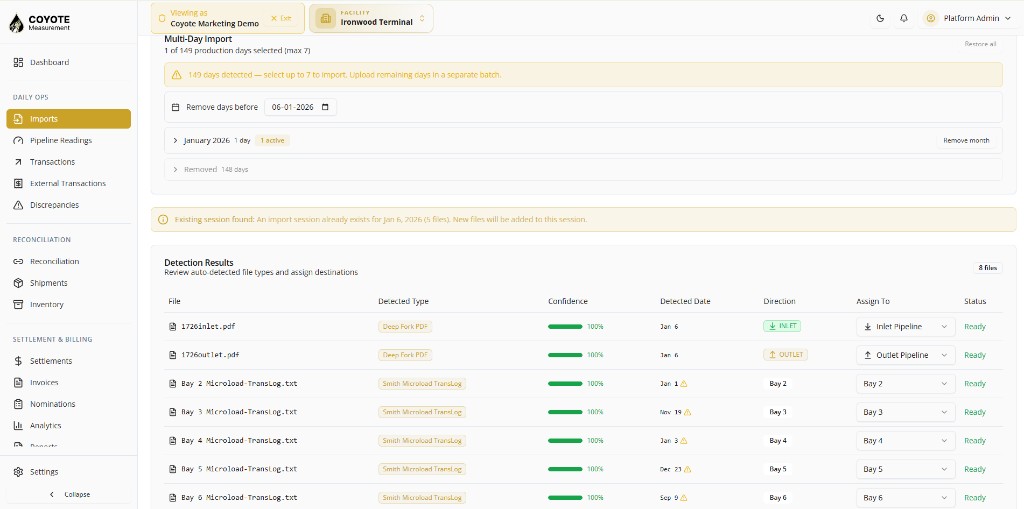
Symptoms: Suggested date does not match the loads in the file; multi-day file imports wrong day.
Fix:
- Override the production day in the upload wizard before processing.
- For multi-day files, use the day picker to import only the days you need (up to 7 days per upload).
- Split large date ranges into separate upload runs if needed.
Date conflict across files
Symptoms: Warning that files disagree on production day.
Fix:
- Remove files that belong to a different day and upload them in a separate New Import.
- Or select the correct day explicitly and confirm only matching files are included.
Upload and processing errors
Facility timezone not configured
Symptoms: Error referencing timezone or operational cycle; import cannot start.
Fix:
- Go to Admin → Facilities.
- Open the facility and set Timezone and Operational cycle start (typically 7 AM).
- Retry the import.
Session already exists for this day
Symptoms: Warning that an active or approved session exists for the same facility and production day.
Fix:
- Active session (not approved) — open the existing session and continue review, or reject it and re-import.
- Approved session — do not re-import the same day unless your workflow allows superseding; contact your admin.
Processing failed for one file
Symptoms: Batch status Failed; error message on batch detail.
Fix:
- Open the failed batch and read the error message.
- Fix the source file and upload again, or reject the session and start New Import.
- Check that bay, pipeline, or LACT mapping was correct in the wizard.
Validation and review issues
Cannot approve — errors on rows
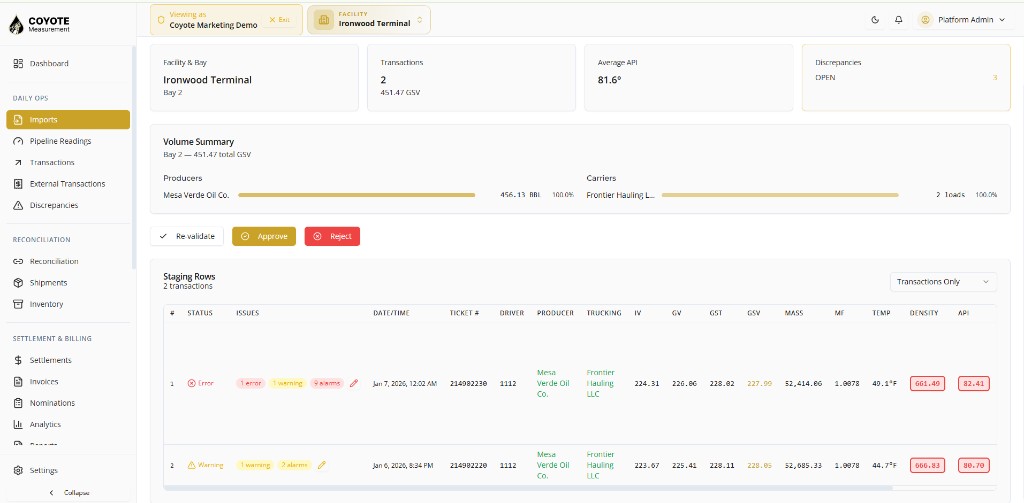
Symptoms: Approve button disabled; red errors on batch rows.
Fix:
- Open each batch with errors.
- Fix or delete offending rows.
- Click Revalidate on the session.
- Approve when scorecard shows no blocking items.
Unmapped shipper or carrier codes
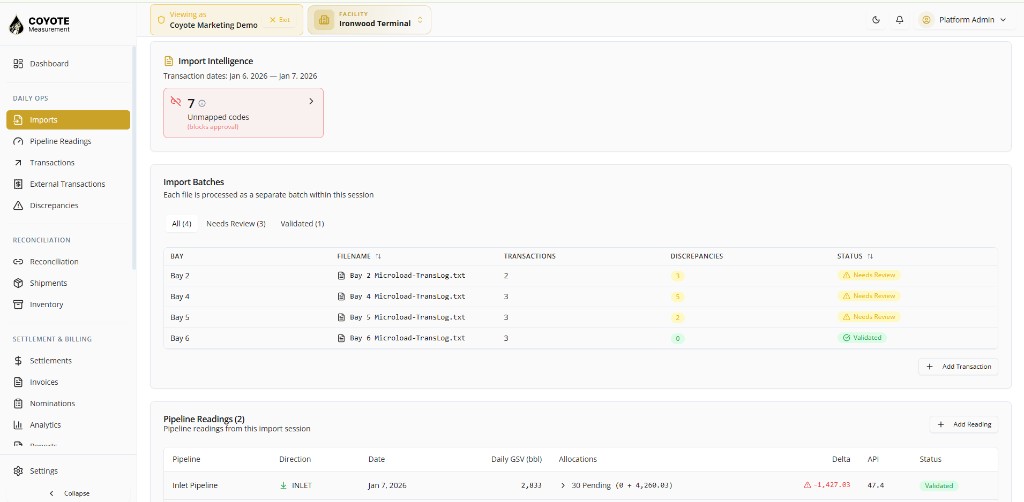
Symptoms: Warnings about unknown shipper/carrier; partner name blank on rows.
Fix:
- Open Unmapped codes on the session page.
- Map codes to partners, or add partners under Admin → Partners with matching codes.
- Revalidate the session.
Duplicate ticket numbers
Symptoms: Duplicate ticket warning; same ticket on multiple rows in one file.
Fix:
- Open Duplicate tickets review.
- Keep the correct row and remove duplicates.
- Revalidate.
Cross-bay tickets
Symptoms: Same ticket on multiple bays in one session.
Fix:
- Complete Cross-bay review and assign the winning bay per ticket.
- Revalidate, then approve.
Sequence gap warning
Symptoms: Missing ticket numbers in bay sequence.
Fix:
- Verify the terminal export is complete for that bay and day.
- Import the missing file or day if loads are actually missing.
- Proceed only if operations confirms the gap is expected.
LACT rows flagged
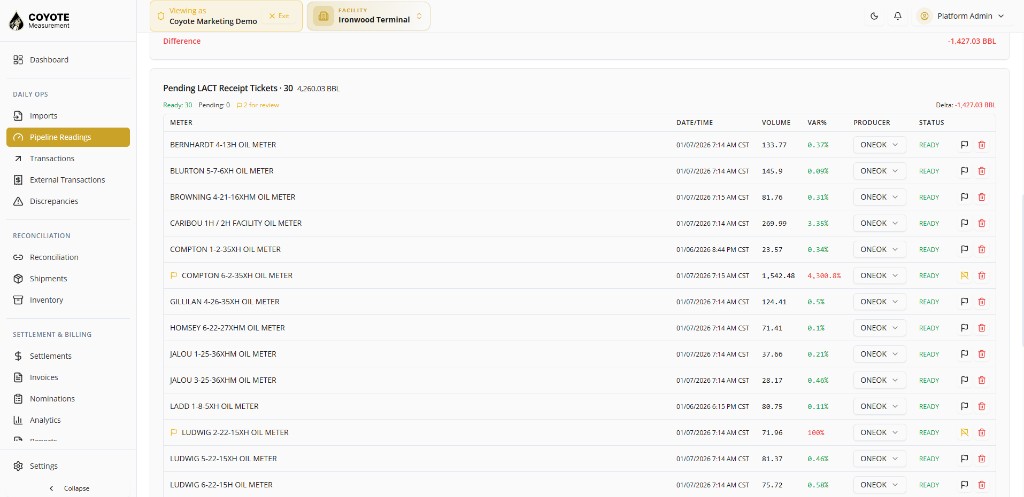
Symptoms: LACT batch stuck in Needs Review; unmatched meters or producers.
Fix:
- Open LACT allocation review on the session.
- Assign producer and link pipeline readings.
- Resolve auto-match suggestions.
- Revalidate when all flags are cleared.
Pipeline reading issues
Pipeline reading not created
Symptoms: Pipeline file processed but no reading on session.
Fix:
- Confirm file was detected as Pipeline reading (not Bay/Carrier).
- Verify pipeline and direction were assigned in the wizard.
- Check PDF extraction — try CSV source format if PDF fails.
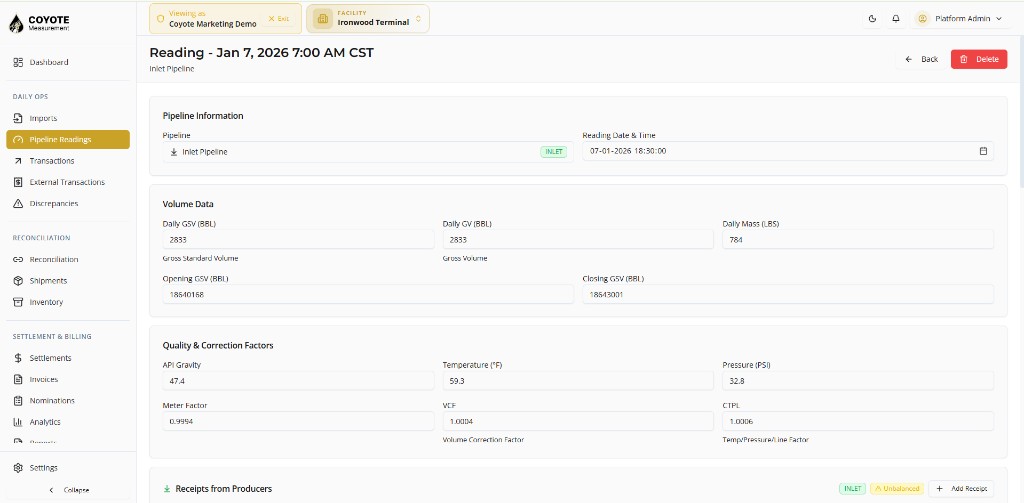
Reading date does not match production day
Fix:
- Confirm production day in the wizard matches the report date in the file.
- Re-import with the correct day if already processed but not approved (reject and re-upload).
Permissions
| Problem | Fix |
|---|---|
| Cannot see Imports | Request facility:imports:list for your role |
| Cannot upload | Request facility:imports:upload |
| Cannot approve | Request facility:imports:approve |
| Facility not in list | Your user needs access to that facility |
Data looks wrong after approve
Symptoms: Volumes, partners, or report day incorrect in ledger after approval.
Fix:
- Compare batch row detail to the original source file.
- Check bay assignment and production day on the session.
- For LACT loads, confirm
loadedBblsvs billed volumes in source — Coyote uses loaded/delivered volumes for custody, not billed-only fields. - Contact support with session ID, batch ID, and sample ticket numbers if the parser misread a supported format.
When to contact support
Reach out to your Coyote administrator or support when:
- A supported file type consistently fails detection or parsing
- Approval succeeds but volumes differ from source for many rows
- Import fails with no clear error on the batch
- You need to supersede an already approved session for a production day
Include:
- Organization and facility name
- Import session ID
- Filenames and production day
- Screenshots of errors or sample rows