

Reviewing & Validating
After files are uploaded, review the import session before approving. Approval promotes staging data to live transactions and pipeline readings used in the ledger, reports, and reconciliation.
Open an import session
- Go to Imports.
- Click a row in the Import Sessions table.
- For multi-day uploads, use the day navigation bar to switch between linked sessions.
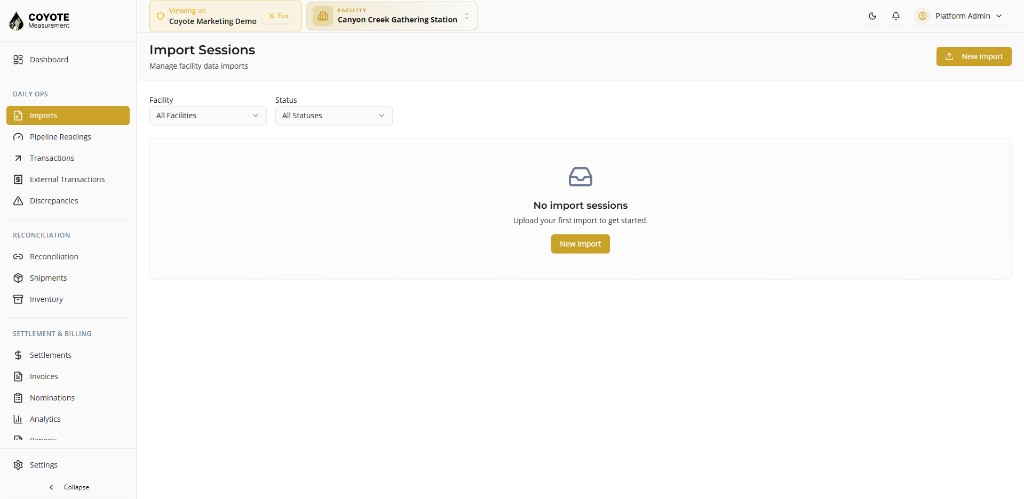
The session page shows:
- Production day, facility, and overall status
- Import intelligence summary (loads, volumes, issues)
- Batches — one per uploaded file
- Pipeline readings tab (if pipeline files were included)
- Approve and Reject actions (requires approve permission)
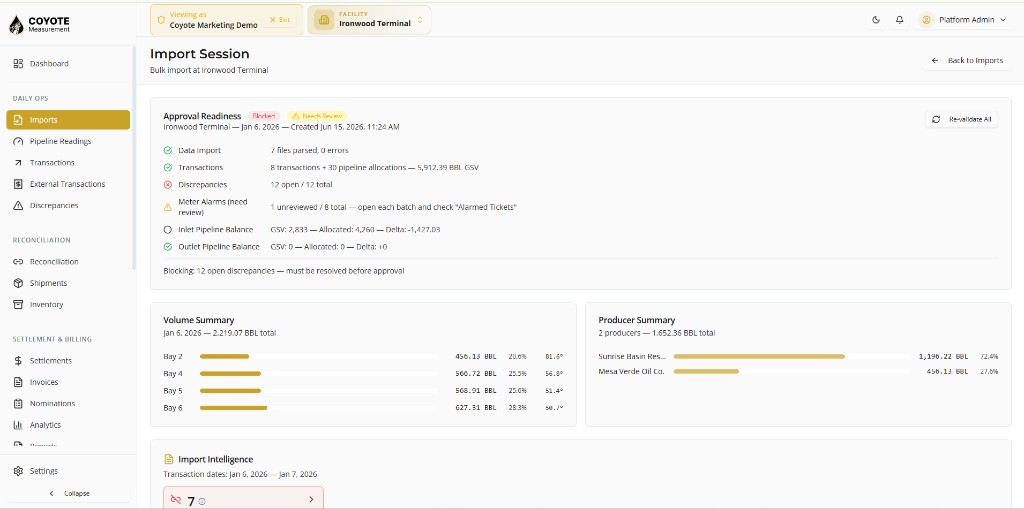
Session scorecard
The session page highlights items that need attention:
| Item | What it means |
|---|---|
| Unmapped codes | Shipper or carrier codes in the file do not match a Partner in Coyote |
| Duplicate tickets | Same ticket number appears more than once in a batch |
| Cross-bay tickets | Same ticket appears on multiple bays in this session |
| Sequence gaps | Missing ticket numbers on a bay (possible missing loads) |
| Data changes | Rows edited since last validation |
| LACT flags | Producer LACT rows need allocation or matching |
Click each banner or scorecard item to open the focused review modal.
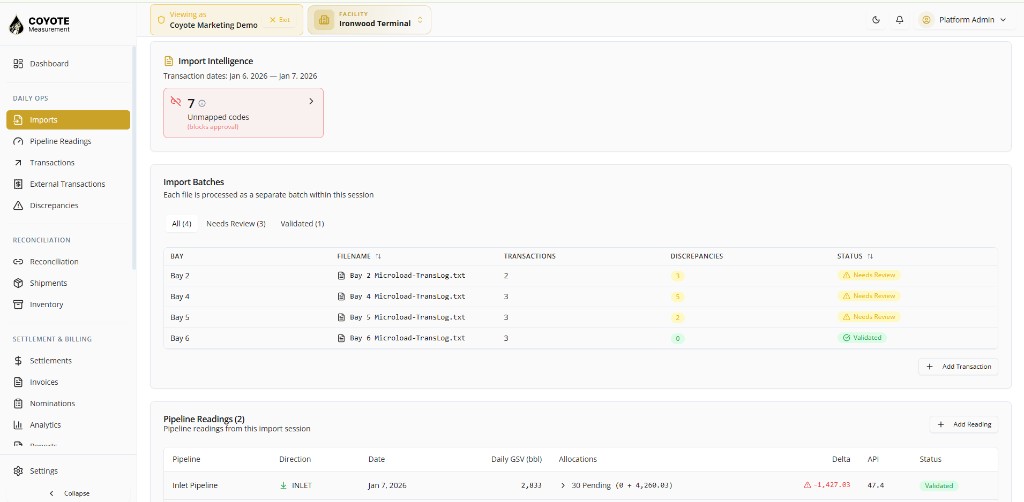
Review a batch (bay / carrier file)
- From the session page, scroll to Import Batches on the session page (or click a batch file name for row-level detail).
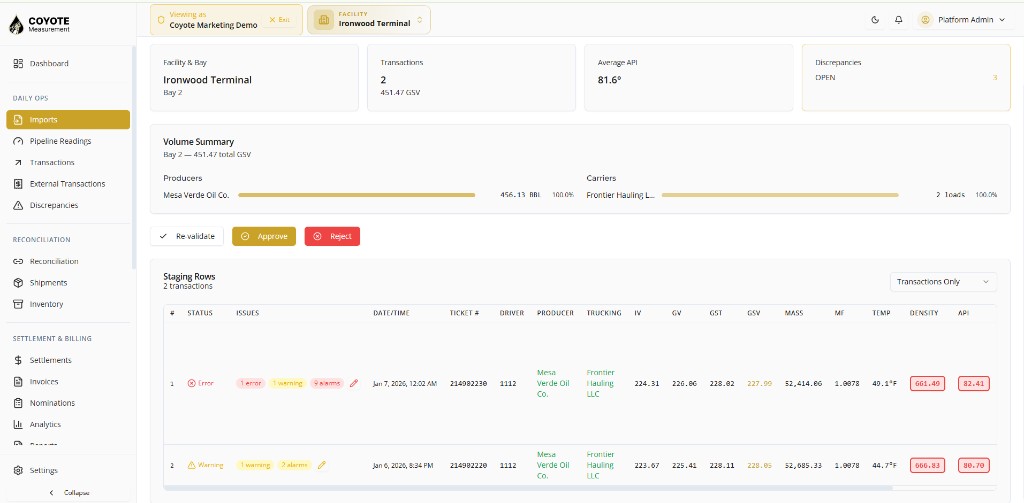
- Review each batch in the table:
- Ticket number, volumes (GV, GSV), temperature, API
- Shipper and carrier codes (and resolved partner names)
- Errors (must fix) and warnings (review before approve)
- Use filters and sorting to find problem rows quickly.
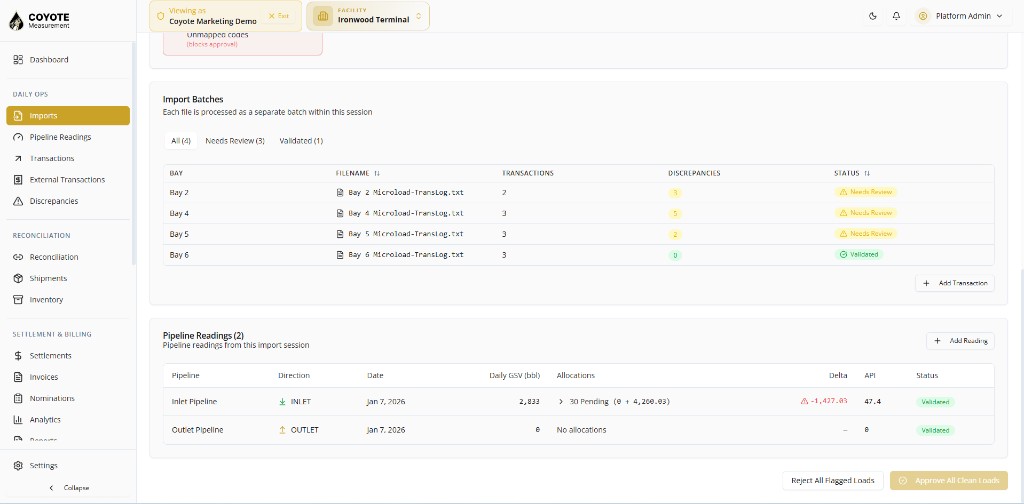
Click a batch file name to open row-level detail for that bay file.
Fix row-level issues
| Action | When to use |
|---|---|
| Edit row | Correct volume, ticket number, or codes |
| Delete row | Remove a bad line from the batch |
| Acknowledge alarm | Accept a BS&W or measurement alarm with a reason |
| Add manual transaction | Add a load missing from the file |
After edits, run Revalidate on the session so Coyote re-runs validation rules.
Resolve unmapped codes
If shipper or carrier codes from the file are not mapped to Coyote partners:
- Open Unmapped codes from the session scorecard.
- Map each code to an existing Partner or create the partner in Admin → Partners first.
- Revalidate the session.
Unmapped codes block a clean approve if they leave transactions without a resolved partner.
Duplicate tickets
- Open Duplicate tickets review.
- For each duplicate group, choose which row to keep and which to remove or mark.
- Revalidate after resolving.
Cross-bay review
When the same ticket number appears on more than one bay in the same session:
- Open Cross-bay review from the banner.
- For each ticket, confirm which bay is correct.
- Complete cross-bay review before approving the session.
Cross-bay tickets are flagged during upload so you can reconcile split or mis-assigned loads before they go live.
Sequence gaps
Coyote checks ticket number sequences per bay. A sequence gap means ticket numbers are missing — possibly a missing file or a gap in the terminal export.
- Review the gap list on the session page.
- Import the missing day or file if the gap is real.
- Document and proceed only if you have confirmed the gap is acceptable.
Producer LACT batches
LACT imports follow a different review path:
- Open the LACT batch from the session.
- Review meter allocations and flagged rows.
- Assign producer and link pipeline readings where required.
- Use bulk assign producer or bulk link reading when many rows share the same values.
- Resolve auto-match suggestions when Coyote finds candidate readings or tickets.
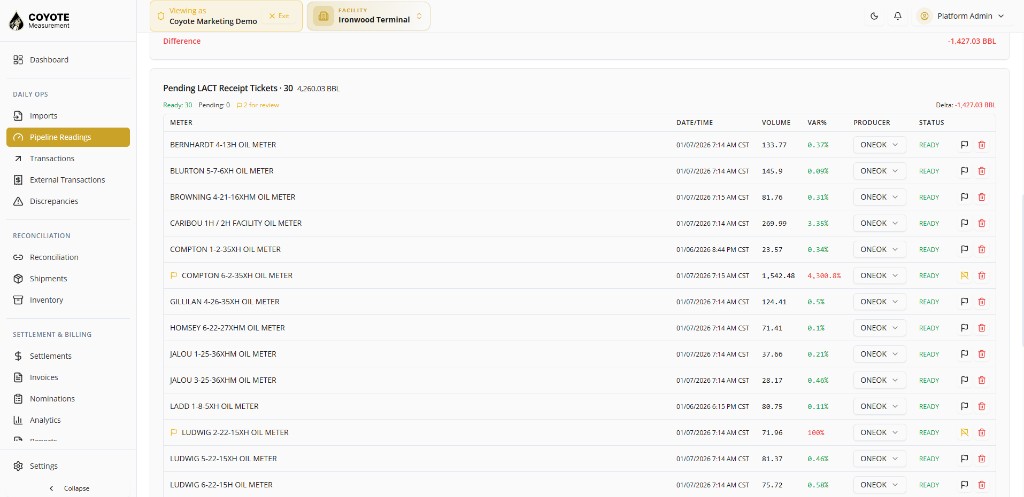
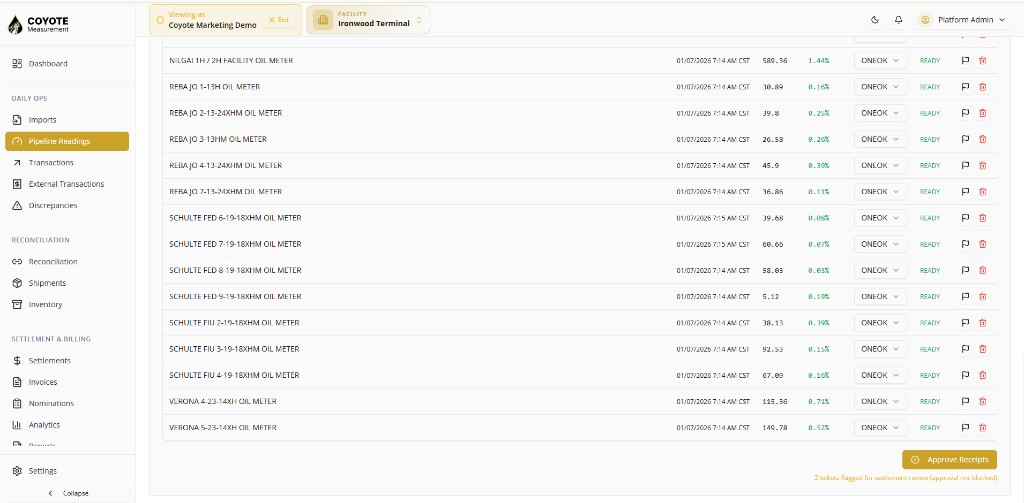
LACT batches may stay in Needs Review until all external tickets are matched or staged appropriately.
Pipeline readings
If you uploaded pipeline files:
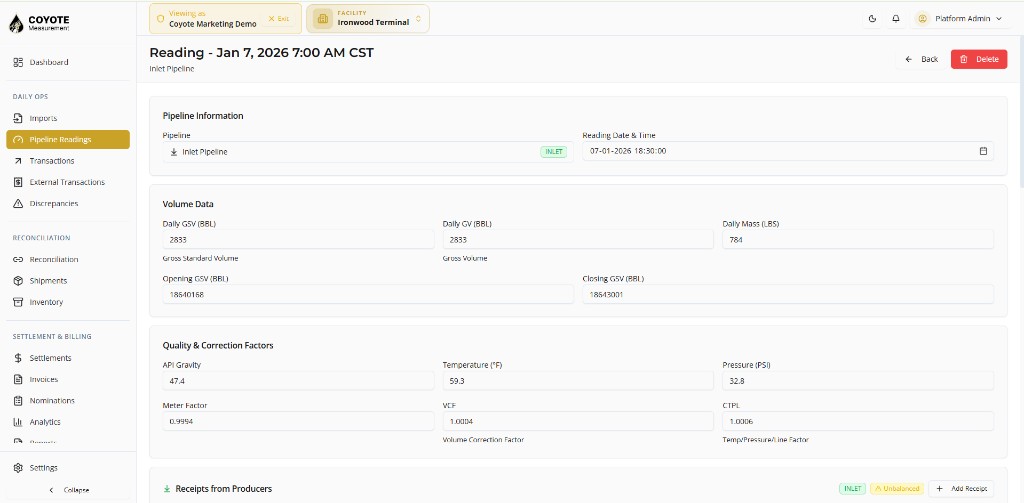
- Open the Pipeline readings tab on the session page.
- Confirm reading date, daily GSV/volume, and pipeline assignment.
- Readings are approved together with bay batches when you approve the session.
Revalidate
Click Revalidate on the session after:
- Editing or deleting rows
- Resolving unmapped codes, duplicates, or cross-bay tickets
- Adding manual transactions
Revalidation refreshes discrepancies, mapping results, and session status.
Approve the session
When all blocking issues are resolved:
- Click Approve session.
- Optionally add approval notes.
- Confirm.
Approval:
- Promotes staging transactions to approved loads
- Approves pipeline readings linked to the session
- Updates session and batch status to Approved
- Makes data available in Loads, Report Ledger, and Reconciliation
You need the import approve permission (facility:imports:approve).
Reject the session
If the import cannot be corrected:
- Click Reject session.
- Enter a reason (required).
- Confirm.
Rejected sessions do not create live data. Export corrected files from source and start a New Import.
What happens after approval
| Area | Result |
|---|---|
| Loads / Transactions | Approved truck loads appear with report day set |
| Report Ledger | Rows available for daily and monthly reports |
| Reconciliation | Loads ready to match against producer statements |
| Pipeline readings | Daily meter totals available for settlement and analytics |
Next: Troubleshooting Imports if something fails during upload or review.