

Transactions
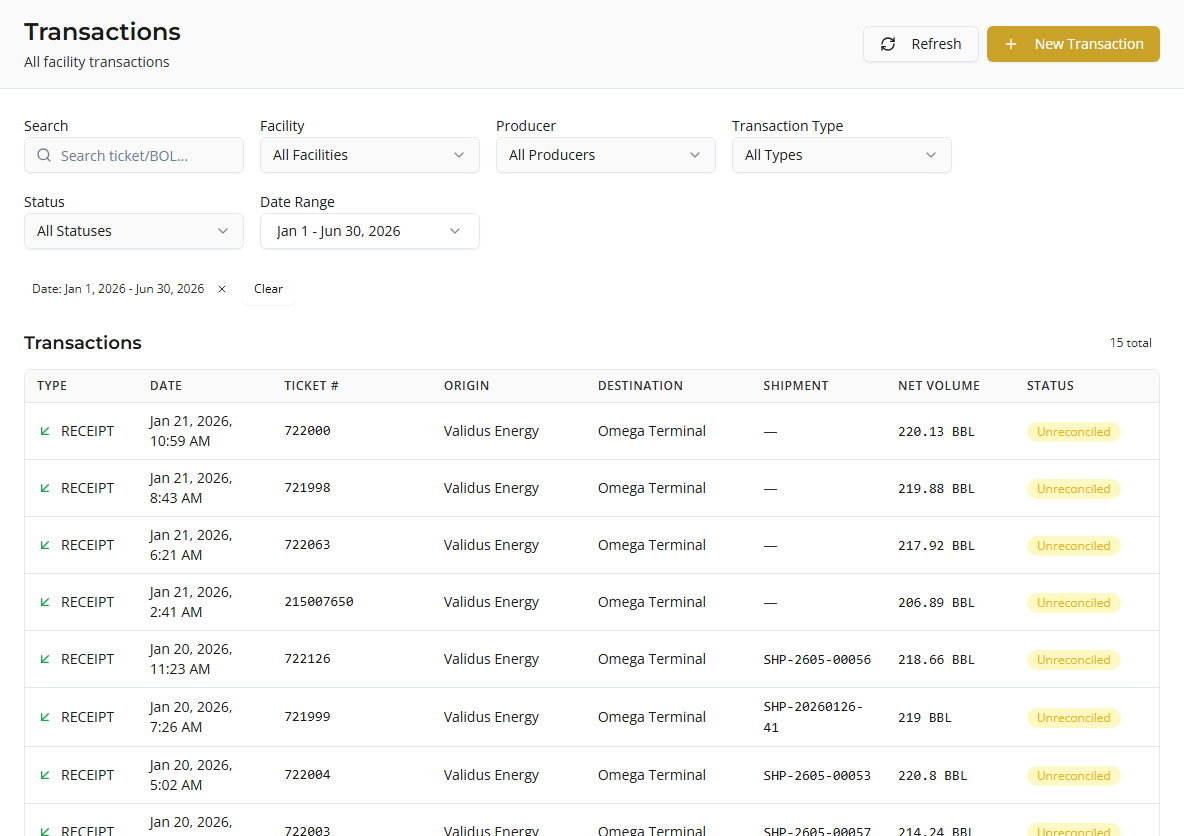
Transactions are facility-side truck loads — the measured tickets at your terminal after import approval or manual entry. In Coyote this is the primary record for volumes, bays, shippers, carriers, and reconciliation status.
Open Daily Ops → Transactions in the app (/transactions).
Transactions list
Columns
| Column | Description |
|---|---|
| Type | Receipt, Delivery, Transfer, Adjustment, Return |
| Date | Transaction time or report day |
| Ticket # | Ticket / BOL (integration badge if from LoadCall, etc.) |
| Origin | Shipper or facility (depends on type) |
| Destination | Partner or facility |
| Shipment | Linked shipment number, if any |
| Net Volume | Net volume (BBL) |
| Status | Reconciliation status |
Filters
| Filter | Use for |
|---|---|
| Search | Ticket number or BOL |
| Facility | One terminal or all facilities |
| Producer | Origin partner (producer) |
| Transaction Type | Receipt, Delivery, etc. |
| Status | Reconciled, Unreconciled, Volume Mismatch, Manual Override |
| Date Range | Presets or custom range (default is recent window) |
Applied filters appear as chips. Use Refresh to reload after imports or syncs.
Actions
| Action | Description |
|---|---|
| New Transaction | Create a load manually (requires create permission) |
| Sync with LoadCall | Shown when a LoadCall integration uses Transaction sync target |
| Refresh | Reload the list |
Click a row to open transaction detail.

Transaction detail
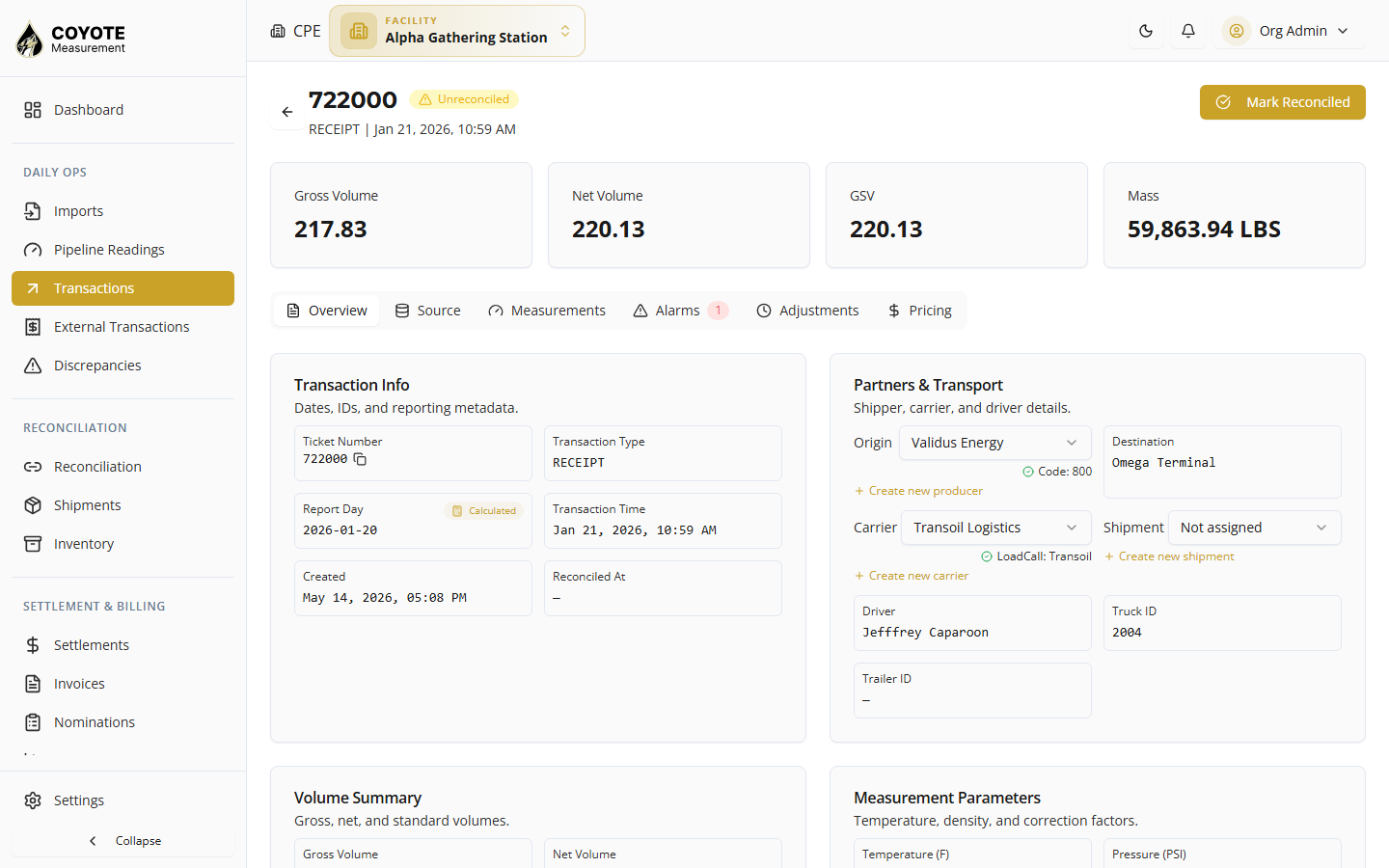
Identification
- Ticket number, type, transaction date/time, report day
- Source (import batch, LoadCall, manual)
- Reconciliation status
Parties
- Shipper / producer — resolved partner or raw code from import
- Carrier — partner or LoadCall carrier name
- Driver — linked agent name or driver name from file
- Truck ID / Trailer ID
- Shipment — assign or view linked shipment (if permitted)
Location & equipment
- Facility
- Bay (for example Bay 2)
- Meter and product when present
Volumes & measurements
- Gross observed volume (GOV), gross standard volume (GSV), net standard volume (NSV), temperature, API, and BS&W
- Calculated fields and validation flags from import rules
- LoadCall sidecar (miles, linehaul, settlement) when synced
Common actions
- Edit editable fields (role-dependent)
- Map unknown shipper/carrier codes to Partners
- Assign to a Shipment
- View history / snapshots
Create a transaction manually
Use when a load was missed in the import file or you need a one-off entry.
- On Transactions, click New Transaction.
- Complete required fields:
- Transaction type (Receipt, Delivery, etc.)
- Ticket number
- Product
- Service type and Movement type
- Facility (from active facility context)
- Bay (optional but recommended)
- Volumes, partners, carrier, dates
- Save.
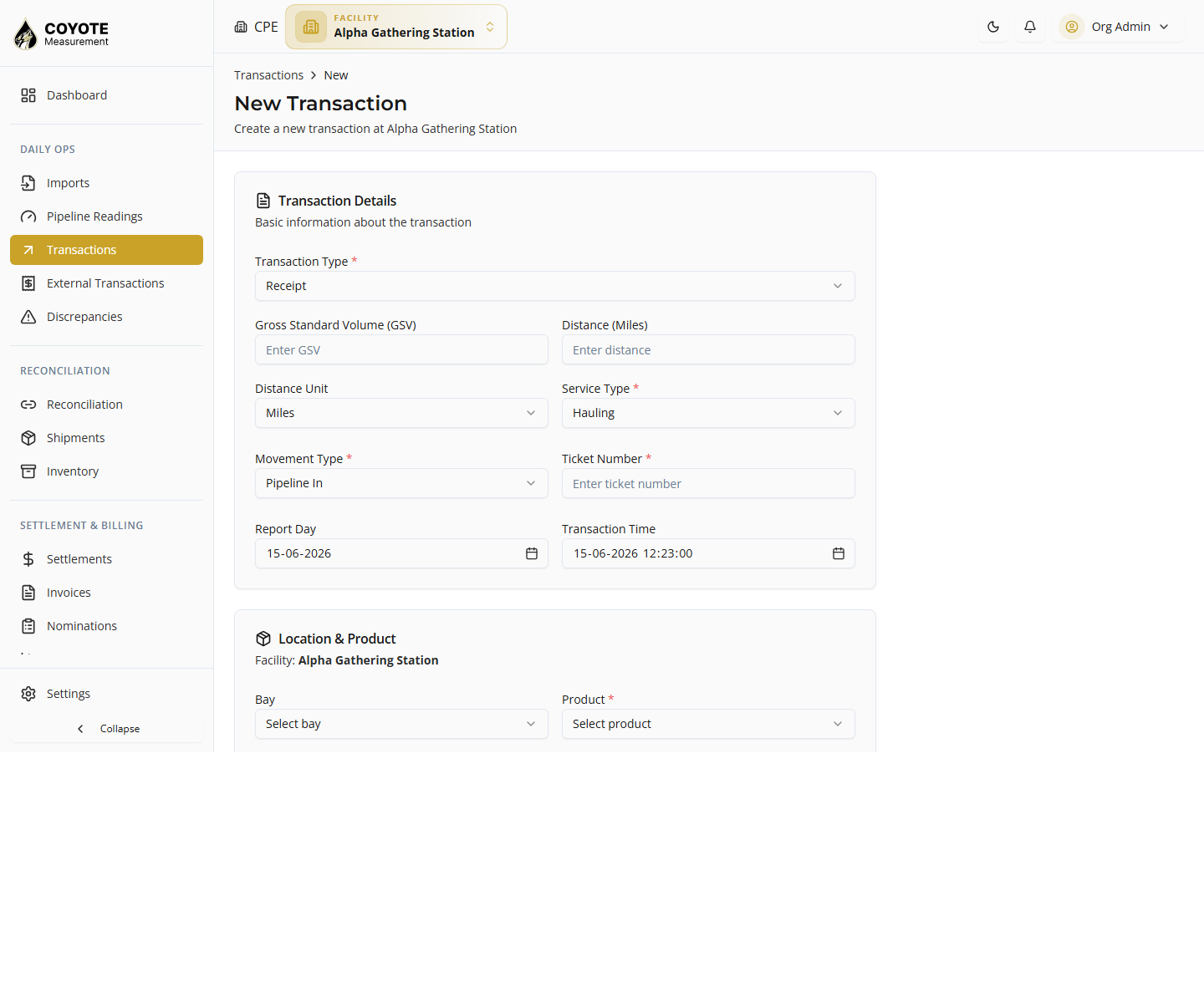
The new transaction appears in the list with reconciliation status Unreconciled until matched or reconciled.
Transaction types
| Type | Typical use |
|---|---|
| Receipt | Product received at facility |
| Delivery | Product delivered from facility |
| Transfer In / Out | Internal movement |
| Adjustment | Volume correction |
| Return | Returned load |
Reconciliation status
| Status | Meaning |
|---|---|
| Unreconciled | Not yet matched to producer data |
| Reconciled | Matched and accepted |
| Volume Mismatch | Matched but volumes differ |
| Manual Override | Accepted with manual adjustment |
Status updates through matching external transactions and Reconciliation workflows.
LoadCall sync (transactions)
If LoadCall is installed with Transaction sync target:
- Click Sync with LoadCall on the Transactions page.
- Choose integration and options in the dialog.
- Synced loads appear with the LoadCall source badge.
Requires LoadCall API credentials under Admin → Integrations.
Where transactions come from
| Source | How |
|---|---|
| Import | Approve import session → staging rows become transactions |
| Manual | New Transaction |
| LoadCall | Sync with Transaction target |
| Google Sheets | Integration with target entity Transaction |
If expected loads are missing, confirm the import session is Approved and widen the date filter.
Permissions
| Action | Permission |
|---|---|
| View list | facility:transactions:list |
| View detail | facility:transactions:view |
| Create | facility:transactions:create |
| Update | facility:transactions:update |
Facility access in the app header must include the terminal you are viewing.
Related topics
- Overview — transactions vs external transactions
- External Transactions — match producer tickets to these loads
- Managing Imports — primary source of facility transactions
- Loads & Bays — Viewing Loads — same screen, bay-focused context